
Daily workflow
Follow a repair from intake and approval through work, payment, and delivery.
The daily workflow is one connected service record. Keep decisions and work attached to the same customer, vehicle, and job instead of recreating information in separate places.
Intake
Find the existing customer and vehicle before creating new records. Confirm the vehicle identity, the customer's current contact details, and the reason for the visit. Use Customers and vehicles for record creation, CSV import, or restoring an archived record.
Estimate and approval
Build the estimate from the requested services, parts, labor, and any diagnostic work. Send it for review through an available communication path and record the customer's decision. Approval is the boundary between proposed and authorized work.
Schedule and execute
Use Scheduling for visits and follow-up commitments. Assign and execute work in the work order; the calendar does not assign technicians or bays. Keep technician notes, parts usage, inspection evidence, and customer updates attached to the job.
For approved external parts, record the vendor order from the estimate, then receive the quantities that actually arrive in Inventory → Orders. A partial delivery leaves the rest pending. See Inventory for receiving and cancellation.
Inspection follow-up
If the job includes a digital inspection, first approve its linked diagnostic item, assign a technician, and record vehicle arrival. Complete the checklist and review the report. An advisor selects the red or yellow findings to propose and chooses Create follow-up estimate. Review and authorize that separate job before repairs begin. See Digital inspections.
Payment and closeout
Invoice selected approved full items when needed, even if work continues. Verify recorded payments and any remaining balance in Payments. Complete work and handover, then close the job when its displayed requirements pass. Eligible account-term customers may have a balance due under the shop's release rule.
Delivery and history
Review the completed work with the customer and make the next step clear. The customer and vehicle history should then show the connected estimate, approval, work, communication, payment, and inspection context that the shop will need later.
Review job activity
Open More → Activity in the job to review recorded events. Search the activity or use All, Internal, and Customer to narrow the timeline. Check the event, actor, and time before using the history to explain a change.
View a product example
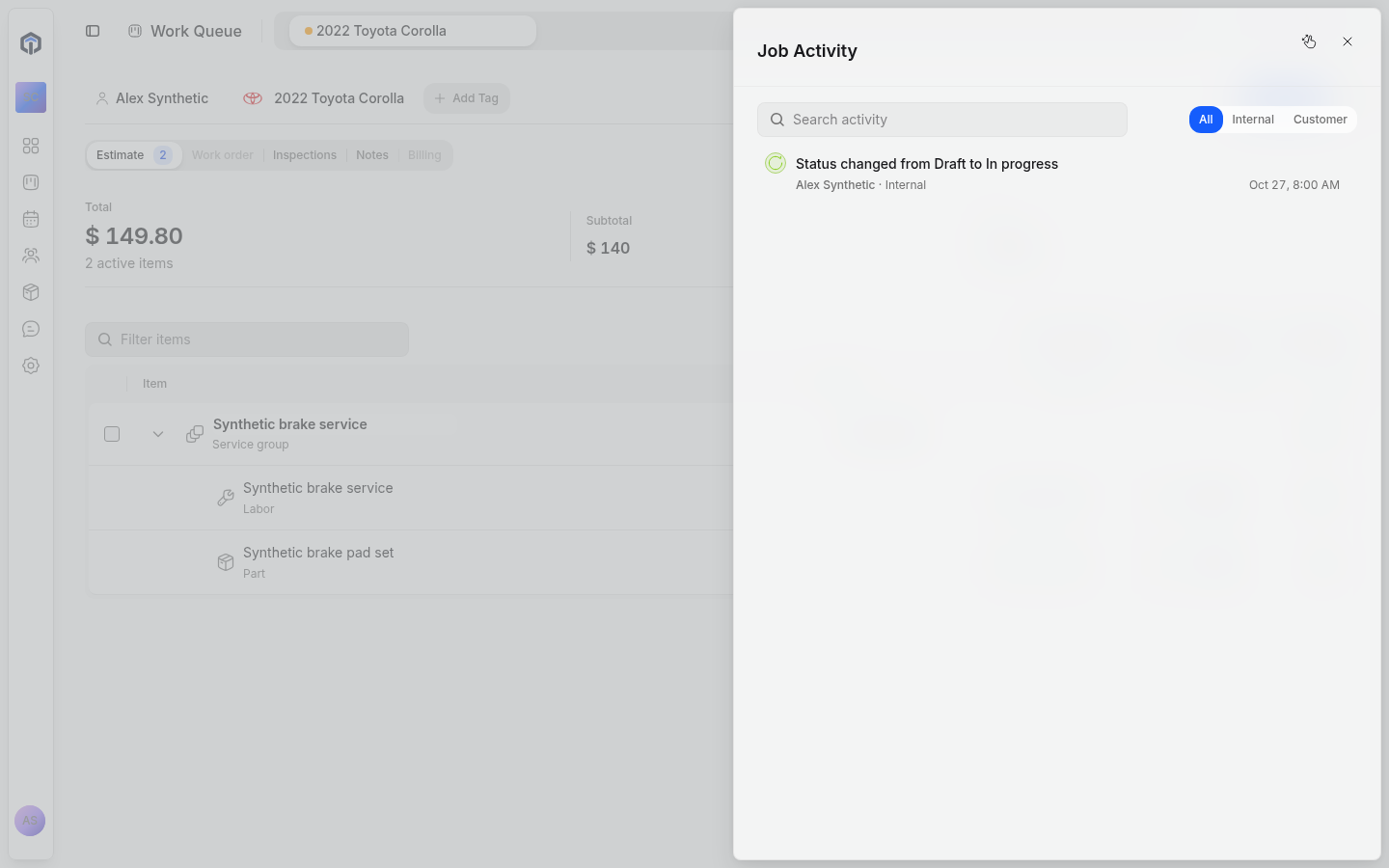
Actual product preview with fictional training records. Open the image for the full-size view.